codesnap.hx
Generate code screenshots from your Helix selections, powered by Silicon
- Stars: 10
- Last commit:
- Created:
Generate code screenshots from your Helix selections, powered by Silicon


Turn code selected in Helix into a polished image, like CodeSnap or Polacode for VS Code. Rendering is done by Silicon.
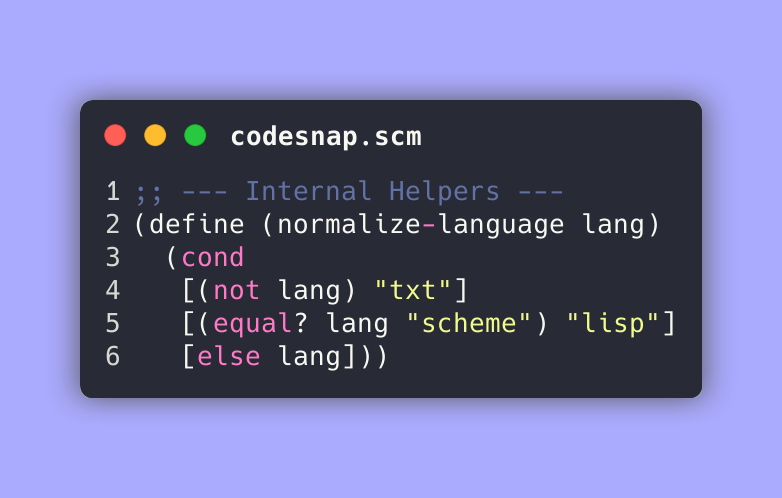
cargo install silicon
forge pkg install --git https://github.com/Vyrnexis/codesnap.hx.git
Add to ~/.config/helix/helix.scm:
(require (only-in "codesnap/codesnap.scm" codesnap-copy codesnap-save codesnap-doctor))
(require (only-in "codesnap/codesnap-menu.scm" codesnap-menu))
(provide codesnap-menu codesnap-copy codesnap-save codesnap-doctor)
Restart Helix, run :codesnap-doctor to confirm everything is found, then select some code (v or x) and run :codesnap-menu.
| Requirement | Notes |
|---|---|
| Helix with Steel | A build of the Steel plugin branch. The plugin system is not yet part of released Helix. |
| Silicon 0.5.0+ | Renders the image. Tested with 0.5.2. |
| Clipboard tool (Linux only) | wl-clipboard on Wayland, xclip or xsel on X11. Only needed for copying; saving files works without it. |
Linux is the primary, tested platform. macOS and Windows path handling exists but is untested.
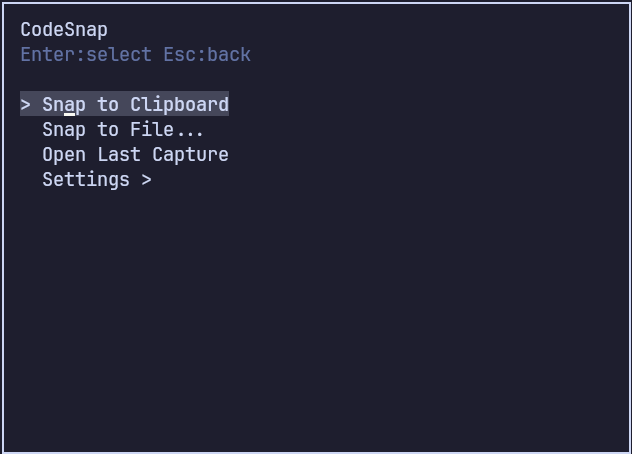
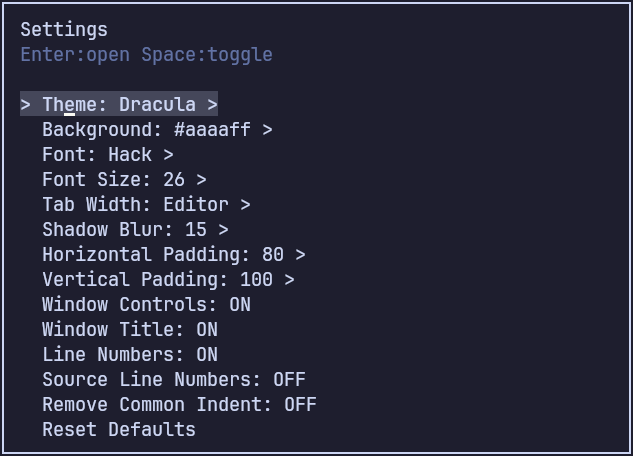
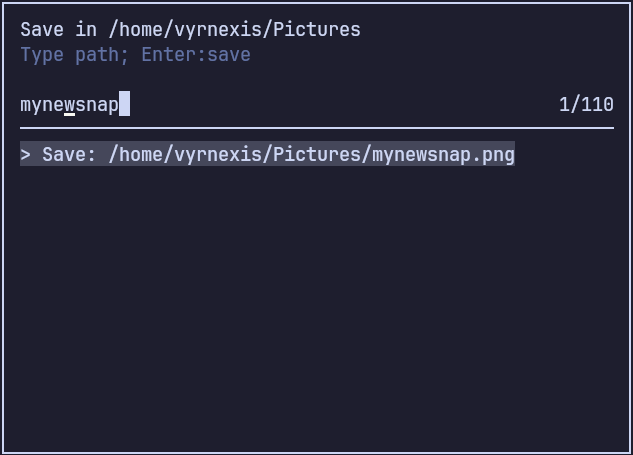
Select code first, then run any of these from the command palette (:).
| Command | What it does |
|---|---|
:codesnap-menu | Opens the interactive menu: capture, open last image, settings, setup check. |
:codesnap-copy | Copies the image to the clipboard (:codesnap is an alias). |
:codesnap-save [path] | Saves to path, or to a unique filename when omitted. Quote paths with spaces: :codesnap-save "~/Desktop/my code.png". |
:codesnap-open-last | Opens the last saved image in your system viewer. |
:codesnap-save-config | Saves the current settings (see Settings). |
:codesnap-reset | Restores default rendering settings. |
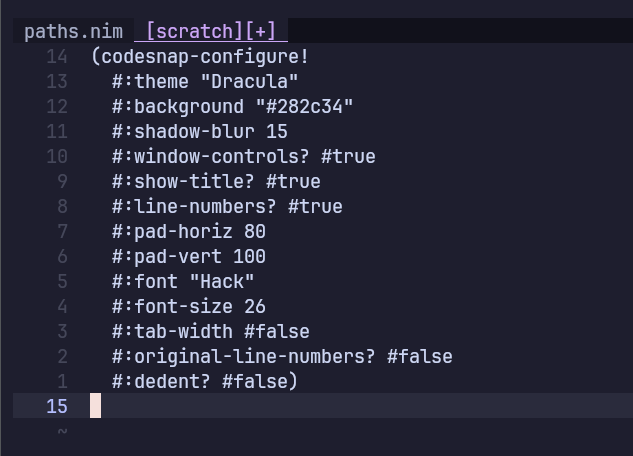
:codesnap-export | Opens the current settings as a codesnap-configure! snippet in a scratch buffer. |
:codesnap-doctor | Reports the Silicon version, clipboard tools, settings file, and any problems. |
Only commands listed in (provide ...) in helix.scm appear in Helix. Add the ones you want to the Quick start snippet.
Add to ~/.config/helix/init.scm to open the menu with Space x in select mode (use any free key):
(require "helix/keymaps.scm")
(keymap (global) (select (space (x ":codesnap-menu"))))
Bind ":codesnap-copy" or ":codesnap-save" the same way for one-key captures.
| Key | Action |
|---|---|
Up / Down, k / j | Move; wraps at the ends |
| Enter | Run an action, open a submenu, or apply a setting and go back |
| Space | Apply a preset without closing, or toggle a switch |
Right, l | Open a submenu |
Left, h, q, Esc | Go back, or close the menu |
In the searchable theme, font, and save pickers, typing filters the list and Esc cancels.
.png. Replacing an existing file requires typing yes.:codesnap-doctor.Suggested filenames combine the source file name and a timestamp. The picker starts in the last directory you saved to, otherwise ~/Pictures, otherwise the current directory.
Changes made in the menu last for the current session. To keep them, choose Settings > Save Settings (or run :codesnap-save-config).
codesnap.toml is written to your Helix configuration directory (for example ~/.config/helix/codesnap.toml) and read when Helix starts. Set the CODESNAP_CONFIG environment variable to use another path. Lines that cannot be read are skipped and listed by :codesnap-doctor.
codesnap-configure! in helix.scm is optional and takes precedence over the file. It suits people who keep their Helix configuration in version control. Every argument is optional; the values below are the defaults:
(require (only-in "codesnap/codesnap.scm" codesnap-configure!))
(codesnap-configure! #:theme "Dracula"            ; see `silicon --list-themes`
                     #:background "#aaaaff"       ; #RGB[A] or #RRGGBB[AA]
                     #:shadow-blur 15             ; 0 disables the shadow
                     #:window-controls? #t        ; macOS-style window buttons
                     #:show-title? #t             ; file name in the title bar
                     #:line-numbers? #t
                     #:pad-horiz 80               ; pixels
                     #:pad-vert 100               ; pixels
                     #:font "Hack"                ; fallbacks separated by semicolons
                     #:font-size 26               ; 1 to 256
                     #:tab-width #f               ; #f follows the editor; or 1 to 255
                     #:original-line-numbers? #f  ; start at the source line (single selection)
                     #:dedent? #f)                ; remove the common space/tab prefix
Invalid values are rejected as a whole, so a typo never leaves a half-applied configuration.
rendering... while Silicon runs and reports success only after checking its exit status and diagnostics. A second capture is refused until the first finishes, and cancelling a prompt never starts one.Start with :codesnap-doctor.
| Symptom | Fix |
|---|---|
| "Silicon is not installed or not on PATH" | cargo install silicon, and make sure ~/.cargo/bin is on the PATH Helix starts with. |
| Clipboard copy fails on Linux | Install wl-clipboard (Wayland) or xclip/xsel (X11). |
Unknown command :codesnap-menu | List it in (provide ...) in helix.scm, then restart Helix. |
| A setting reverts after restart | Use Save Settings. If helix.scm calls codesnap-configure!, those values override the saved file. |
| Errors after updating Helix | The Steel plugin API is still experimental. Run :codesnap-doctor and open an issue with your Helix commit. |
forge pkg install --git https://github.com/Vyrnexis/codesnap.hx.git --force
If forge reports "Already up to date" but the version in forge list did not change, its cached clone has not advanced. Install a specific commit or tag instead:
forge pkg install --git https://github.com/Vyrnexis/codesnap.hx.git --rev <commit-or-tag> --force
See the changelog for what changed.
Tests, architecture notes, and the manual checklist are in CONTRIBUTING.md.