forest.hx
A file explorer tree for Helix
- Stars: 105
- Last commit:
- Created:
A file explorer tree for Helix
forest.hx is a file tree explorer for Helix, with two selectable styles: snacks, a persistent sidebar panel with an integrated fuzzy search bar (default), and mini, floating Miller columns with a live preview.
snacks style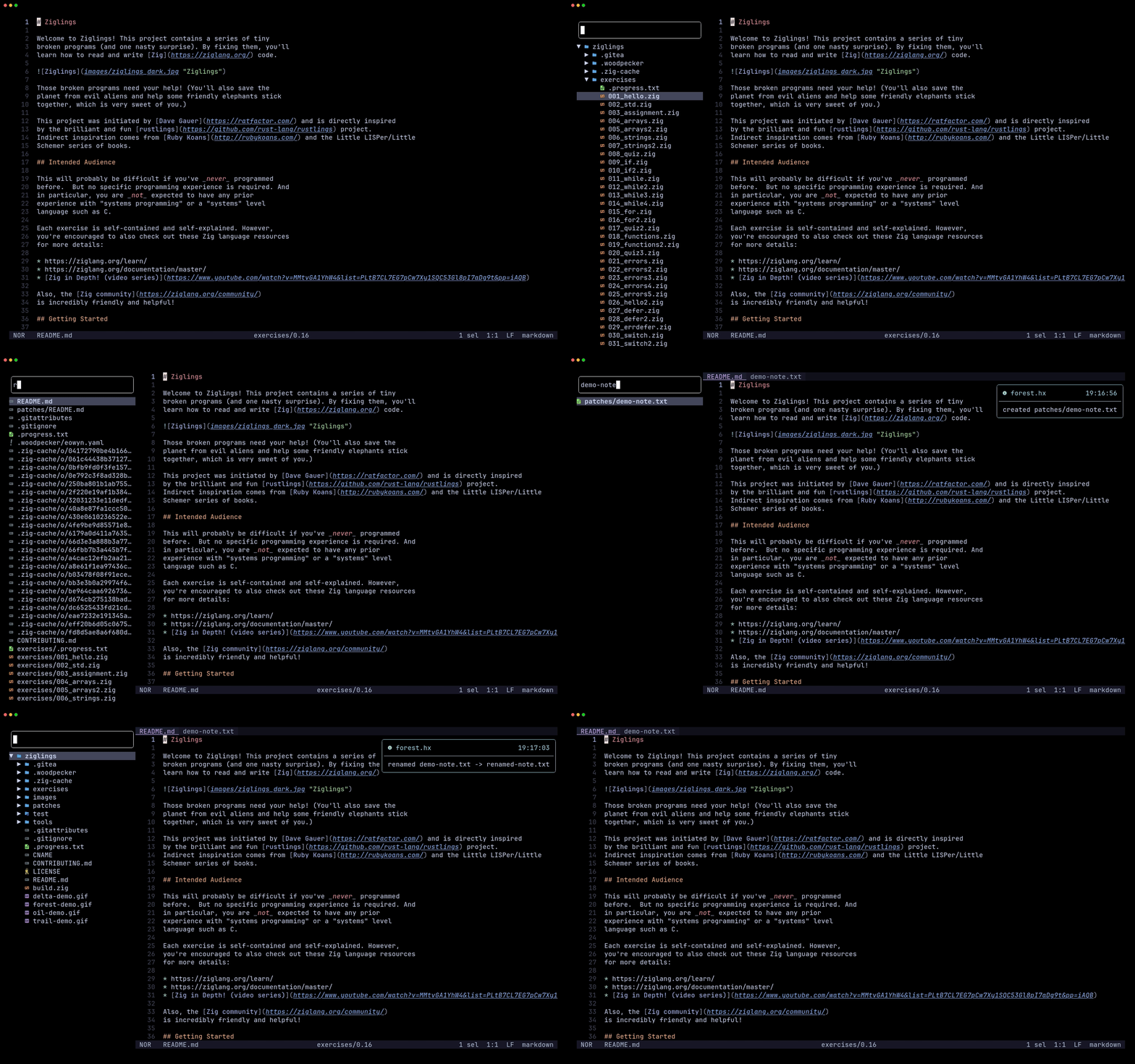
mini style preview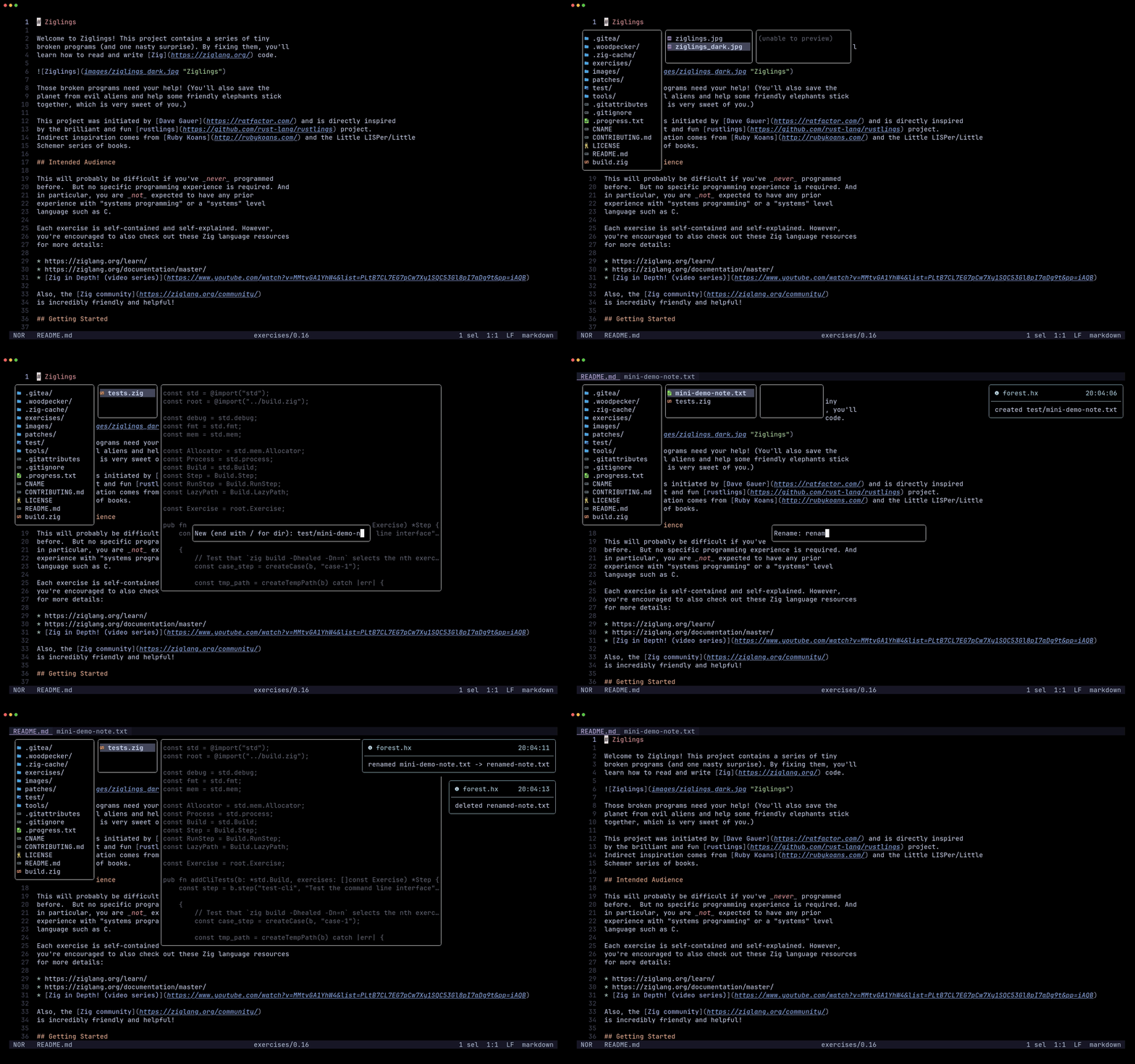
1. Install the plugin-enabled fork of Helix by following the instructions here.
2. Install forest.hx via forge:
forge pkg install --git https://github.com/Ra77a3l3-jar/forest.hx.git
3. Load the plugin by adding this to your init.scm:
(require "forest/forest.scm")

;; Optional: which side the tree renders on ('left by default), and which
;; entry names are always hidden
(forest-configure! 'left #:ignore (list ".git" "target" "__pycache__"))

;; Optional: which explorer UI forest-open uses ('snacks by default)
;; (forest-set-style! style)
(forest-set-style! 'snacks) ; or 'mini

;; Optional (snacks): wrapping j/k inside a folder, and h/l to enter or leave
(forest-snack-circular-keybinds #t)

;; Optional (snacks): give the sidebar its own background per focus state, so the
;; tree stands apart from the buffer.
(forest-set-sidebar-bg! #:focused "#1e1e2e" #:unfocused "#181825")

;; Optional (snacks): color the search box outline. It marks focus by default
;; (orange focused, white unfocused); override the colors, or stop it changing.
(forest-set-search-color! #:focused "#89b4fa" #:unfocused "#585b70")
(forest-set-search-color! #:always "#89b4fa")            ; one color, both states
(forest-set-search-color! #:focused "#89b4fa" #:follow-focus? #f) ; never changes
Bind :forest-open to a key, e.g. in init.scm:
(keymap (global)
        (normal (space (e ":forest-open"))))
snacks style| Key | Action |
|---|---|
↑ / ↓ / j / k | Move through the tree |
Enter | Open the selected file, or toggle the selected directory |
Tab | Toggle the selected directory (outside search) |
/ | Start typing a fuzzy search query |
n | Create a file or directory (end name with / for a directory) |
r | Rename the selected entry |
d | Delete the selected entry |
R | Refresh the tree |
g | Toggle dotfiles (.env, .git, etc.) |
i | Toggle git-ignored entries |
+ / - | Widen / narrow the panel |
Space | Open the which-key menu; press any listed key to run its action (Esc dismisses) |
Esc | Switch focus to the editor, panel stays open |
q | Close the panel |
With (forest-snack-circular-keybinds #t), j/k wrap inside the current folder, l/→ enter a directory or open a file, and h/← leave the folder.
Opening or refocusing the tree reveals and centers whatever file is currently open in the editor.
| Mouse | Action |
|---|---|
| Click an entry | Select it, focusing the panel first if the editor had focus |
| Click it again | Open the file, or toggle the directory |
| Click the search box | Start typing, keeping whatever query is already there |
| Wheel over the panel | Scroll the selection |
| Click in the buffer | Return focus to the editor, panel stays open |
mini style| Key | Action |
|---|---|
↑ / ↓ / j / k | Move within the active column |
→ / l / Enter | Open the selected file, or cascade into the selected directory |
← / h | Back up to the parent column |
/ | Fuzzy search the whole workspace and jump to the match |
n | Create a file or directory (end name with / for a directory) |
r | Rename the selected entry |
d | Delete the selected entry |
R | Refresh the active column |
g | Toggle dotfiles (.env, .git, etc.) |
i | Toggle git-ignored entries |
+ / - | Widen / narrow the columns |
Space | Open the which-key menu; press any listed key to run its action (Esc dismisses) |
Esc / q | Close |
Opening the tree reveals whatever file is currently open in the editor, cascading a column for each ancestor directory along the way.
| Mouse | Action |
|---|---|
| Click an entry | Select it; in an ancestor column, drop the columns cascaded off it |
| Click it again | Open the file, or cascade into the directory |
| Click in the preview | Cascade into the previewed directory, landing on the entry clicked |
| Wheel over the active column or preview | Move the selection |
| Click off the columns | Close |
Space opens the which-key menu in the bottom right corner, and when pressed any listed key to run its action.editor.mouse left on (it is by default).